How to Trade with MT5 on FXPro
Introduction
MetaTrader 5, or MT5, is a multi-asset trading platform used for forex and CFD trading. FxPro offers MT5 as one of its supported platforms, allowing users to access markets through live pricing, charting tools, indicators, multiple order types, and trade management features.
MT5 works as the trading interface, while FxPro provides pricing, leverage, execution, account conditions, and trading infrastructure.
This FXPro review explains how to use MT5 with FxPro, including how to log in, place orders, understand lot size, use trading tools, manage risk, and solve common MT5 connection or trading issues.
How MT5 and FxPro Work Together
Before using MT5 with FxPro, users need to open and approve an FxPro trading account.
After account setup, FxPro provides MT5 login details, including:
Login number
Trading password
FxPro MT5 server
When users log in with these details, MT5 connects to FxPro’s trading servers.
Any action inside MT5, such as opening, modifying, or closing a trade, is sent to FxPro for execution.
In simple terms, MT5 is the platform the trader uses, and FxPro is the broker that executes the trades.
1. What Is MT5 at FxPro?
MT5 is a trading platform developed by MetaQuotes.
It allows traders to:
View live market prices
Analyze charts
Place and manage trades
Use technical indicators
Run automated trading systems called Expert Advisors
When MT5 is connected to FxPro, trading conditions depend on the FxPro account type.
This means spreads, commissions, leverage, symbols, and execution rules are set by FxPro, not by MT5 itself.
2. How to Download MT5 from FxPro
FxPro provides MT5 for several devices.
Desktop
The desktop version is usually preferred by traders who need full platform features.
It supports advanced charting, custom indicators, templates, and Expert Advisors.
Mobile
MT5 is available on Android and iOS.
The mobile app can be used for chart monitoring, trade management, and account access.
Web Version
MT5 WebTrader runs in a browser and does not require software installation.
It may be useful for quick access, but it usually has fewer advanced features than the desktop version.
3. How to Log In to MT5 with FxPro
After opening an FxPro account, users receive their MT5 login ID, trading password, and server name.
To log in:
Open MT5
Click File
Select Login to Trade Account
Enter the login ID and password
Choose the correct FxPro server
Selecting the wrong server can cause connection or authorization errors.
If the login fails, users should check whether they are using MT5 credentials instead of MT4 credentials, confirm the correct server name, and make sure the account is active.
4. MT5 Interface Explained
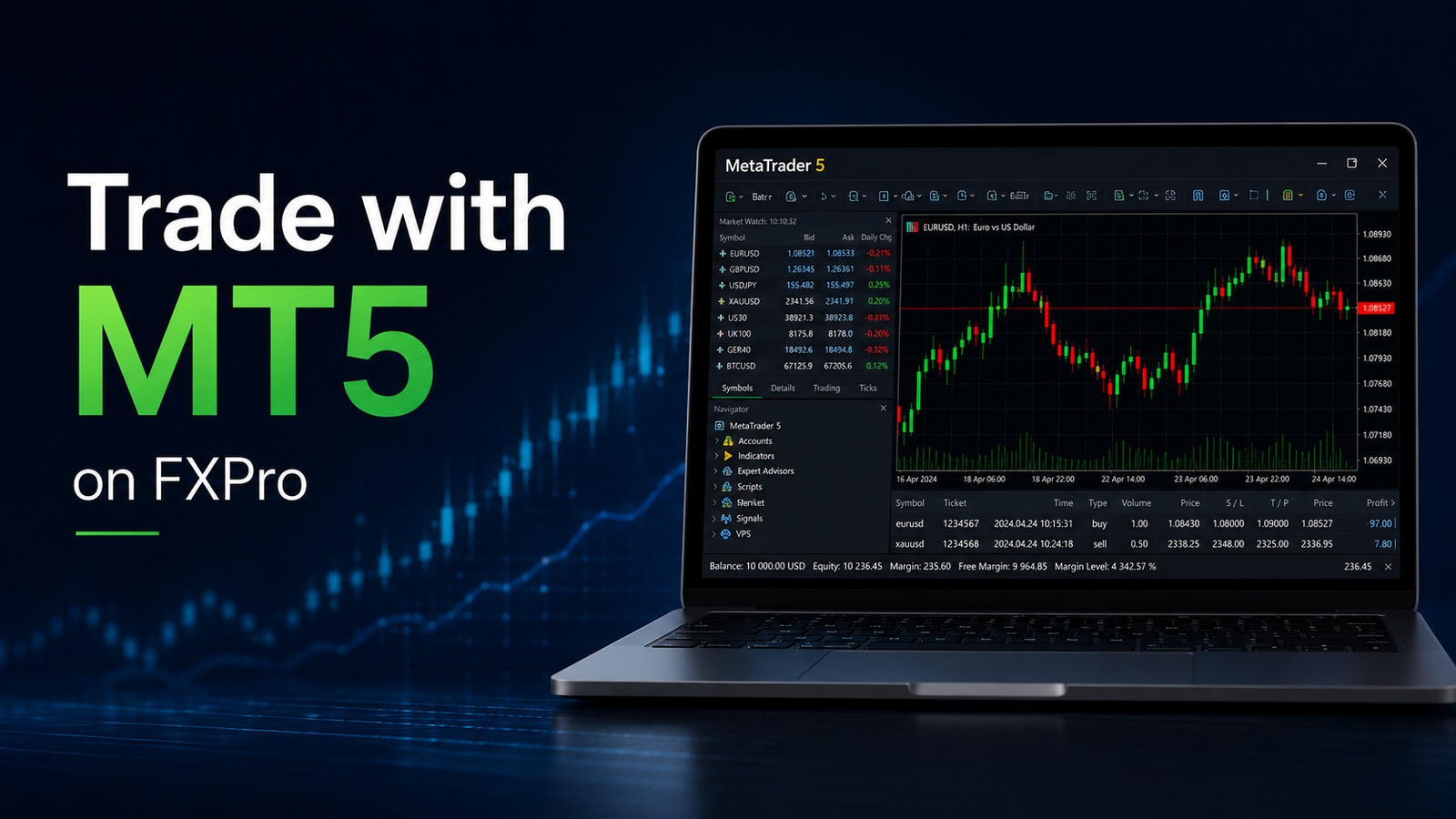
MT5 has several main sections.
Market Watch
Market Watch shows tradable instruments and live bid and ask prices.
Users can add or remove symbols manually.
Charts
The chart area shows price movement for selected instruments.
MT5 supports multiple timeframes, candlestick charts, bar charts, line charts, indicators, and drawing tools.
Navigator
The Navigator panel includes trading accounts, indicators, scripts, and Expert Advisors.
It is also used to manage automated trading tools.
Toolbox
The Toolbox window shows open positions, pending orders, account balance, margin, free margin, trade history, and system messages.
This section is important for monitoring trades and account risk.
5. How to Place a Trade on MT5
MT5 supports market orders and pending orders.
Market Orders
A market order opens a position at the current available price.
To place a market order:
Right-click on the chart
Select New Order
Choose the symbol and volume
Select Buy or Sell
Add a Stop Loss or Take Profit if needed
Market orders are commonly used when traders want to enter the market immediately.
Pending Orders
Pending orders open only when the market reaches a selected price.
MT5 supports several pending order types, including:
Buy Limit
Sell Limit
Buy Stop
Sell Stop
Buy Stop Limit
Sell Stop Limit
These order types give traders more flexibility when planning entries.
Pending orders can be useful when traders want to enter at a specific price instead of opening a position immediately.
6. Lot Size, Margin, and Leverage in MT5
Lot size controls trade volume.
Common lot sizes include:
1.00 lot: 100,000 units
0.10 lot: 10,000 units
0.01 lot: 1,000 units
Leverage affects how much margin is needed to open a position.
MT5 displays important account values such as balance, equity, margin, free margin, and profit or loss.
These values change in real time as prices move.
Traders should understand lot size, margin, and leverage before using a live account.
A larger lot size increases potential profit and potential loss. For this reason, beginners usually test position sizes on a demo account before trading with real funds.
7. How FxPro Trading Conditions Appear in MT5
FxPro trading conditions may appear differently depending on the account type.
Standard-style accounts may include most trading costs in the spread.
Raw-style or lower-spread accounts may show tighter spreads, but commissions can be charged separately.
Commission details may appear in account history or trade records.
For this reason, traders should compare the full cost, including spreads, commissions, swaps, and possible slippage.
Users can also check symbol specifications inside MT5 to view contract size, minimum volume, maximum volume, swap details, and trading sessions.
8. Indicators, Timeframes, and Tools
MT5 includes a wider range of built-in tools compared with MT4.
Common MT5 tools include:
More built-in indicators
Additional timeframes
Integrated economic calendar
Drawing tools
Custom indicators
Chart templates
One-click trading
These tools can support analysis, but they do not guarantee better trading results.
Indicators should be used as part of a wider trading plan that includes risk management, market context, and position sizing.
9. Automated Trading Using Expert Advisors on MT5
MT5 supports automated trading through Expert Advisors, also known as EAs.
An EA is a program that can open, manage, or close trades based on predefined rules.
FxPro may allow EAs on MT5, depending on account rules and trading conditions.
EA performance depends on strategy quality, market conditions, spreads, execution, and risk settings.
Automated trading still carries risk, especially during volatile or low-liquidity periods.
Before using an Expert Advisor on a live FxPro MT5 account, traders should test it on a demo account and review how it performs during different market conditions.
10. MT5 vs MT4 on FxPro: Which Platform Should Beginners Use?
FxPro may support both MT4 and MT5, but the platforms are not the same.
MT4 is widely used for forex trading and is often considered simpler by beginners.
MT5 is more advanced and includes more order types, more timeframes, more built-in tools, and better multi-asset support.
For users who only need basic forex trading, MT4 may be enough. For users who want more tools, more order flexibility, and a more modern platform, MT5 may be the better option.
The best choice depends on the trader’s experience, preferred markets, strategy type, and platform needs.
11. Common MT5 Issues on FxPro
Some common MT5 issues include:
No connection: often caused by wrong server details or internet problems
Authorization error: usually caused by incorrect login details or server selection
Trade disabled: may happen when the market is closed, or the account is restricted
High spread: often linked to low liquidity, news events, or market volatility
Insufficient margin: usually caused by high lot size or limited free margin
Many problems are related to account settings, server selection, market hours, or trading conditions rather than the MT5 platform itself.
If MT5 does not connect to FxPro, users should first check their login number, password, server name, internet connection, and whether they are using the correct platform version.
Risk Reminder
MT5 is a trading platform, not a trading strategy.
Even with advanced tools, indicators, and automation, losses are still possible.
Leverage can increase both gains and losses, and market conditions can change quickly.
Before trading with real funds, users should understand order types, margin, leverage, lot size, and risk management.
For platform comparison, users can also review guides comparing MT4, MT5, and cTrader.
FAQs About Trading with MT5 on FxPro
How do I log in to FxPro MT5?
To log in to FxPro MT5, open the MetaTrader 5 platform, click File, select Login to Trade Account, then enter your FxPro MT5 account number, password, and the correct FxPro trading server.
Why can’t I connect my FxPro account to MT5?
Common reasons include choosing the wrong server, entering the wrong password, using MT4 login details instead of MT5 credentials, having an unstable internet connection, or trying to connect outside normal market conditions.
Can I use FxPro MT5 on mobile?
Yes. FxPro MT5 can be used on iOS and Android through the MetaTrader 5 mobile app. After installing the app, users can search for FxPro and log in with their MT5 account details.
Is MT5 better than MT4 for FxPro trading?
MT5 offers more advanced charting tools, more order types, more timeframes, and better multi-asset support. MT4 is simpler and still popular among forex traders, but MT5 is usually better for users who want more tools and flexibility.
What is the minimum lot size on FxPro MT5?
The minimum lot size can vary depending on the instrument and account type. Traders should check the symbol specification inside MT5 or review the trading conditions in their FxPro account.
Can I use Expert Advisors on FxPro MT5?
Yes. MT5 supports Expert Advisors, also known as EAs. However, traders should test any automated strategy on a demo account before using it on a live FxPro account.
Why is my FxPro MT5 order not opening?
An order may not open because of insufficient margin, market closure, disabled trading, incorrect order size, price movement, or account restrictions. Traders should check the MT5 Toolbox section for platform messages and review the symbol’s trading conditions.
Conclusion
MT5 on FxPro gives traders access to forex and CFD markets through a modern multi-asset trading platform. It provides charts, indicators, additional order types, Expert Advisors, an economic calendar, and trade management tools.
However, trading outcomes depend on market conditions, account settings, execution, and risk management. Beginners should start with a demo account or small position size before trading larger amounts on a live FxPro MT5 account.